Yubico Japan explains how to add a YubiKey to 1Password
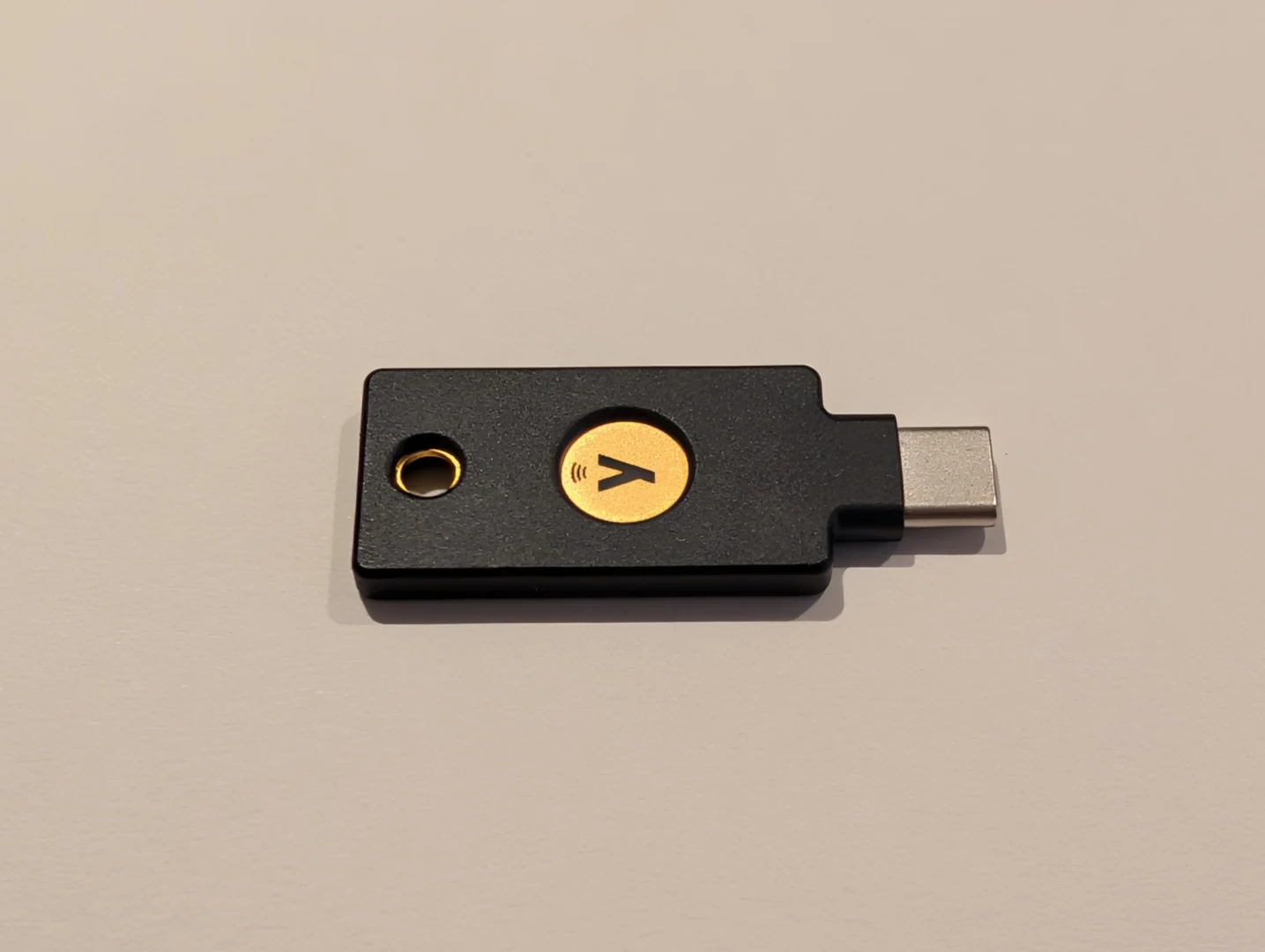
On November 10, Yubico Japan published a guide to adding a YubiKey physical security key as a second factor for a 1Password account. The registered key is used when signing in on a new device or reauthenticating an existing one.
Public-key authentication is tied to the registered site
A WebAuthn-compatible key adds a second-factor check to the account password and Secret Key that protect a 1Password account. WebAuthn uses public-key cryptography and ties the security key’s authentication to the registered website’s domain. Yubico says it offers stronger phishing resistance than typing one-time codes from an authenticator app.
Add the key in the account’s two-factor settings
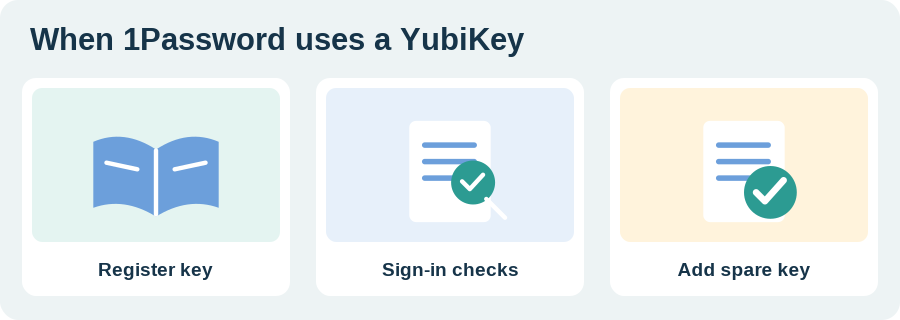
The guide says to sign in to 1Password using a desktop browser, open the account’s two-factor authentication settings and select “Add a Security Key.” Connect a supported YubiKey and touch it to register it. Yubico lists its YubiKey 5 Series and Security Key Series, with FIDO U2F enabled, as compatible examples.
Register a spare key in case one goes missing
A registered key is used to sign in on a new device or to reauthenticate an existing one. Routine unlocking still works with the account password or other usual methods. Yubico recommends setting up a spare physical key and an authenticator app, and removing any lost key from the list of registered keys.