Yubico Japan explains how to register a YubiKey for two-factor authentication on X
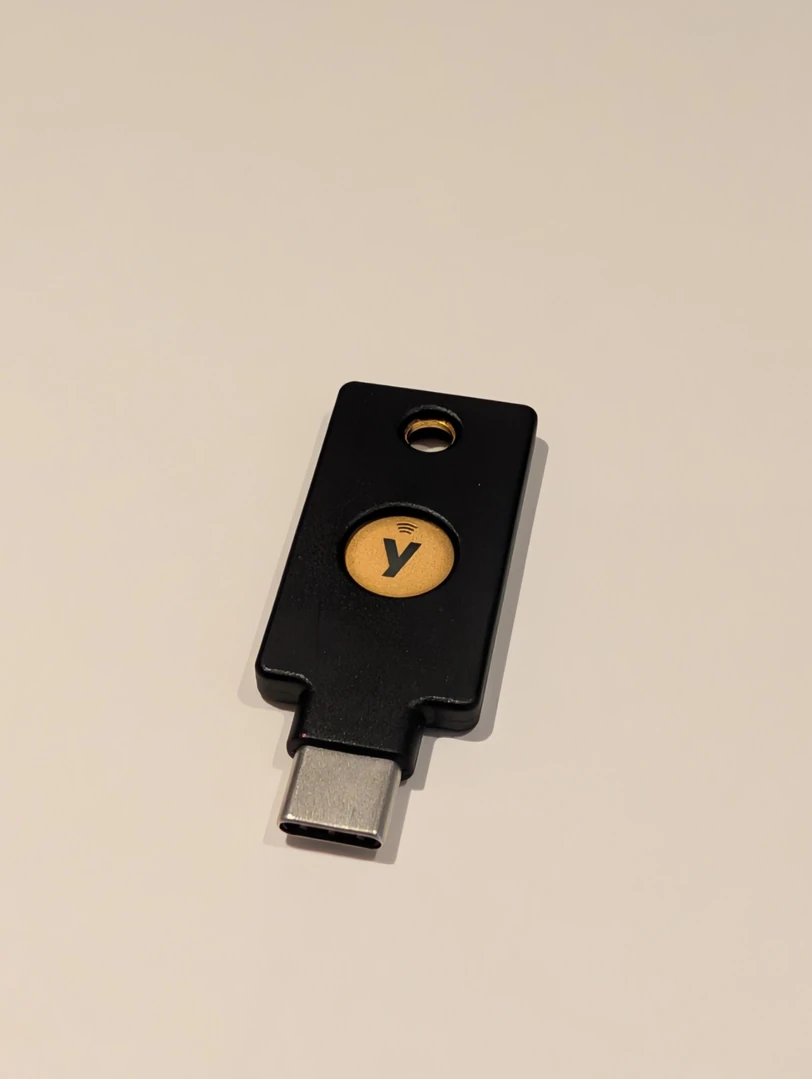
On November 10, Yubico Japan published instructions for registering a physical YubiKey security key with an account on X, formerly Twitter. Users can set it up in the smartphone app or a desktop browser. On compatible devices, the key can connect via USB or NFC.

Registration in the app or a desktop browser
According to Yubico Japan, users open the two-factor authentication settings in X and select “Security key.” They follow the on-screen instructions, including entering their password, and connect a compatible YubiKey. On a smartphone, they can also hold an NFC-compatible key near the phone. Yubico Japan says setup requires a verified email address on the account. Menu names and locations may vary by app version and over time.
Using a security key as the only second factor and adding a spare
X’s help page, cited by Yubico Japan, says users can make a physical security key the only authentication method in addition to their password. In that configuration, SMS and authenticator app verification are turned off. Yubico Japan recommends registering a second key in case the first is lost. After registration, users can add, rename, or remove keys in X’s settings.