Yubico Japan explains how to add a physical security key to Dropbox
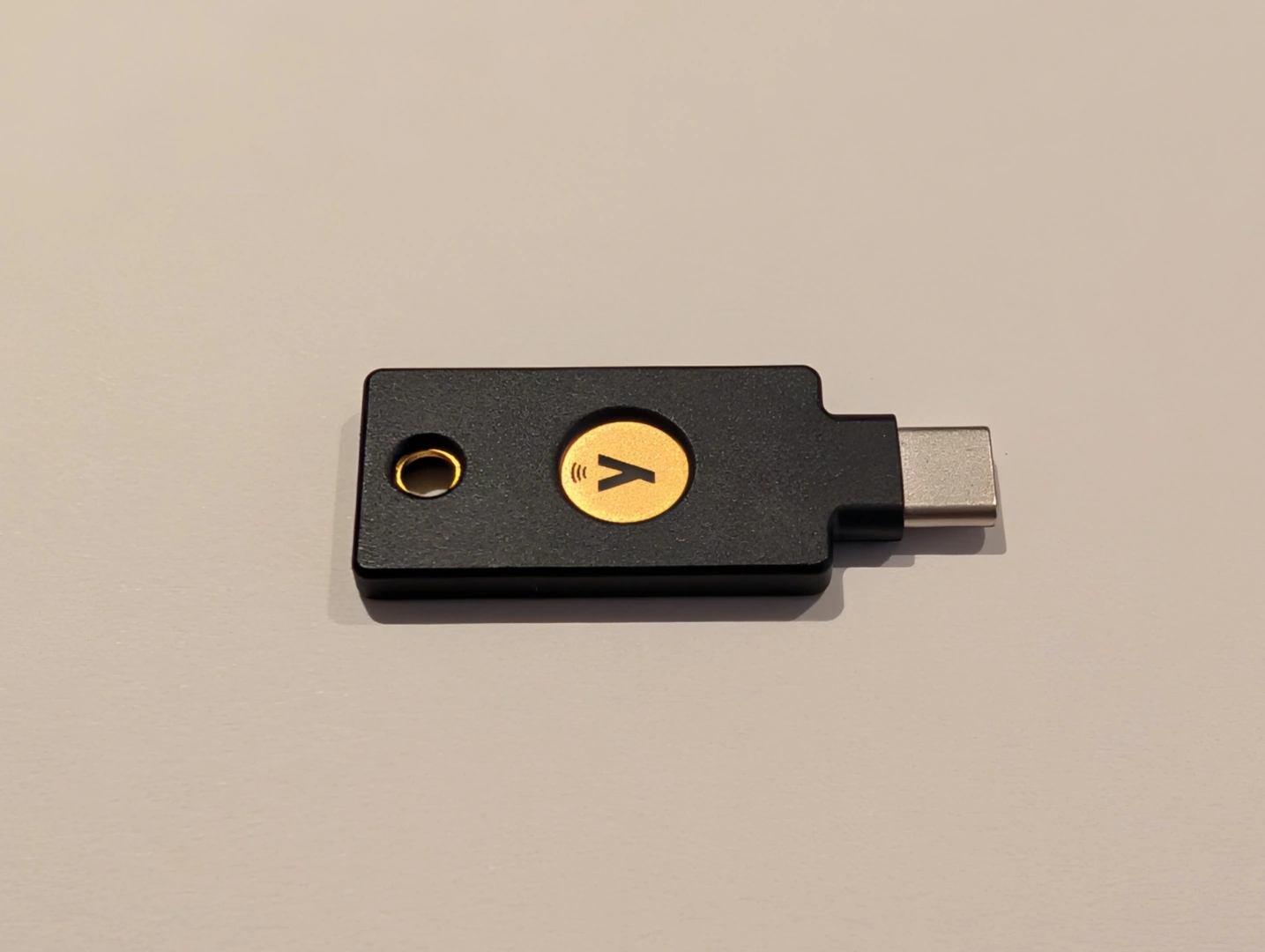
On November 10, Yubico Japan published instructions for adding a physical YubiKey security key to two-step verification for Dropbox, the cloud storage service. Compatible keys can be used to sign in at dropbox.com in Chrome or Firefox. Users must first enable two-step verification with an authenticator app or SMS before registering a key.
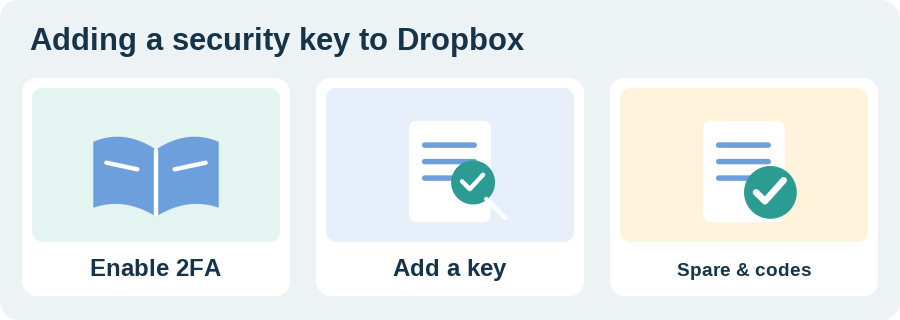
Set up an authenticator app or SMS first
Dropbox supports physical FIDO U2F or FIDO2 (WebAuthn) keys that use public-key cryptography for both personal and business accounts. Yubico Japan says to enable two-step verification first, then open Dropbox’s security settings in a browser and add the key. To register a USB YubiKey, follow the on-screen instructions and touch the key. If your team uses single sign-on (SSO), check the authentication method with your team administrator.
The desktop and mobile apps use verification codes
Signing in to the Dropbox desktop or mobile app uses a code from an authenticator app or SMS. Yubico Japan recommends keeping a spare key and emergency backup codes in case a key is lost. Dropbox issues ten eight-digit backup codes, each usable once. If you set up two-step verification again, save the new codes it displays.